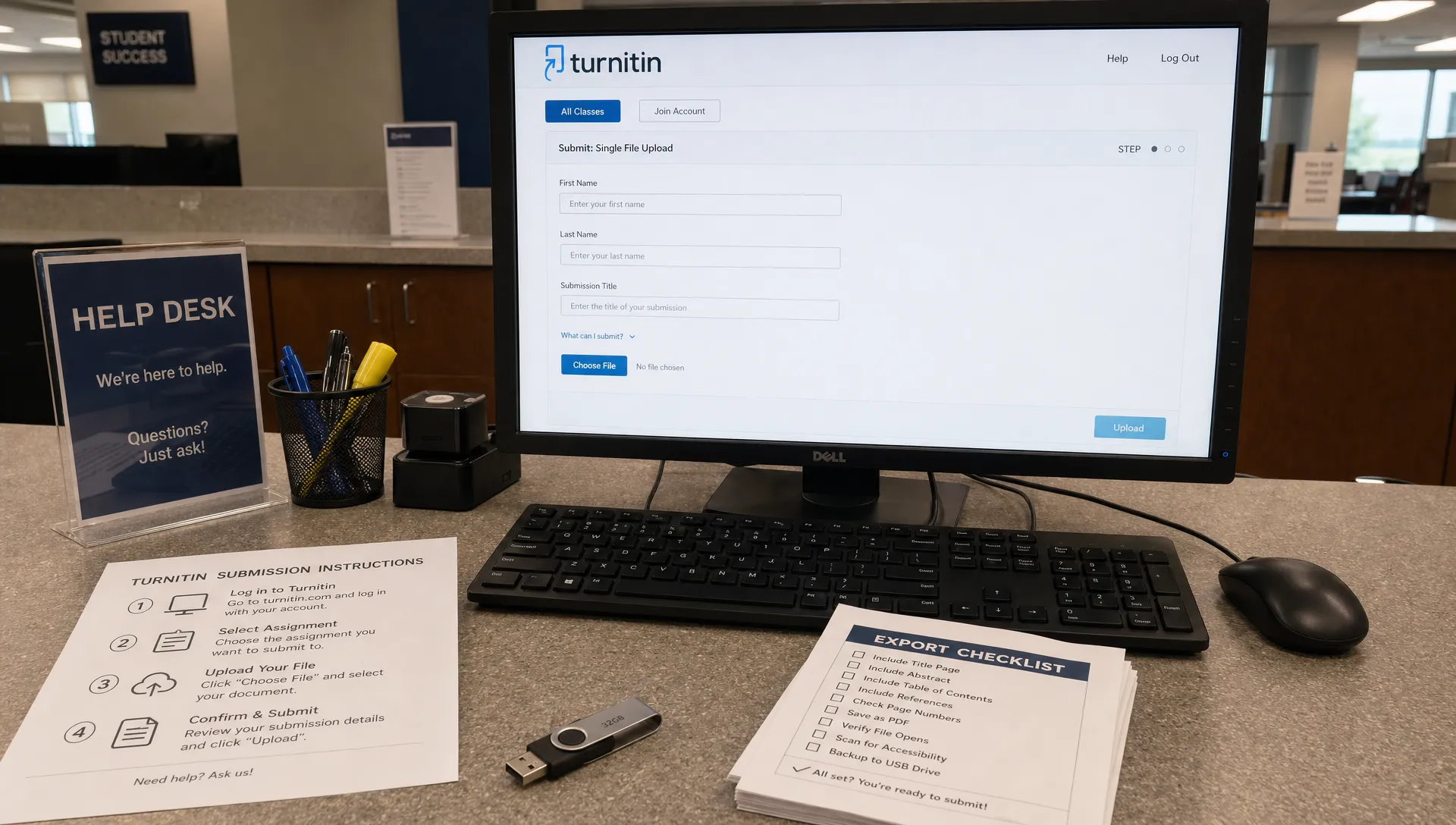
If you searched for “turnitin google drive,” the short answer is yes, Google Drive files can sometimes be submitted directly to Turnitin, but only through an approved upload route inside Turnitin, an LMS or Google Classroom. A Drive file is not submitted just because it exists in your account, is shared with a teacher or is attached to an assignment.
The exact workflow depends on how your school has configured Turnitin. Some students see a Google Drive picker on the submission page. Others must download the file from Google Docs as a Word document or PDF, then upload that local file. The important point is simple: Turnitin has to receive a processable copy of the document before it can create a similarity report or AI writing indicator.
Can turnitin google drive files be submitted directly?
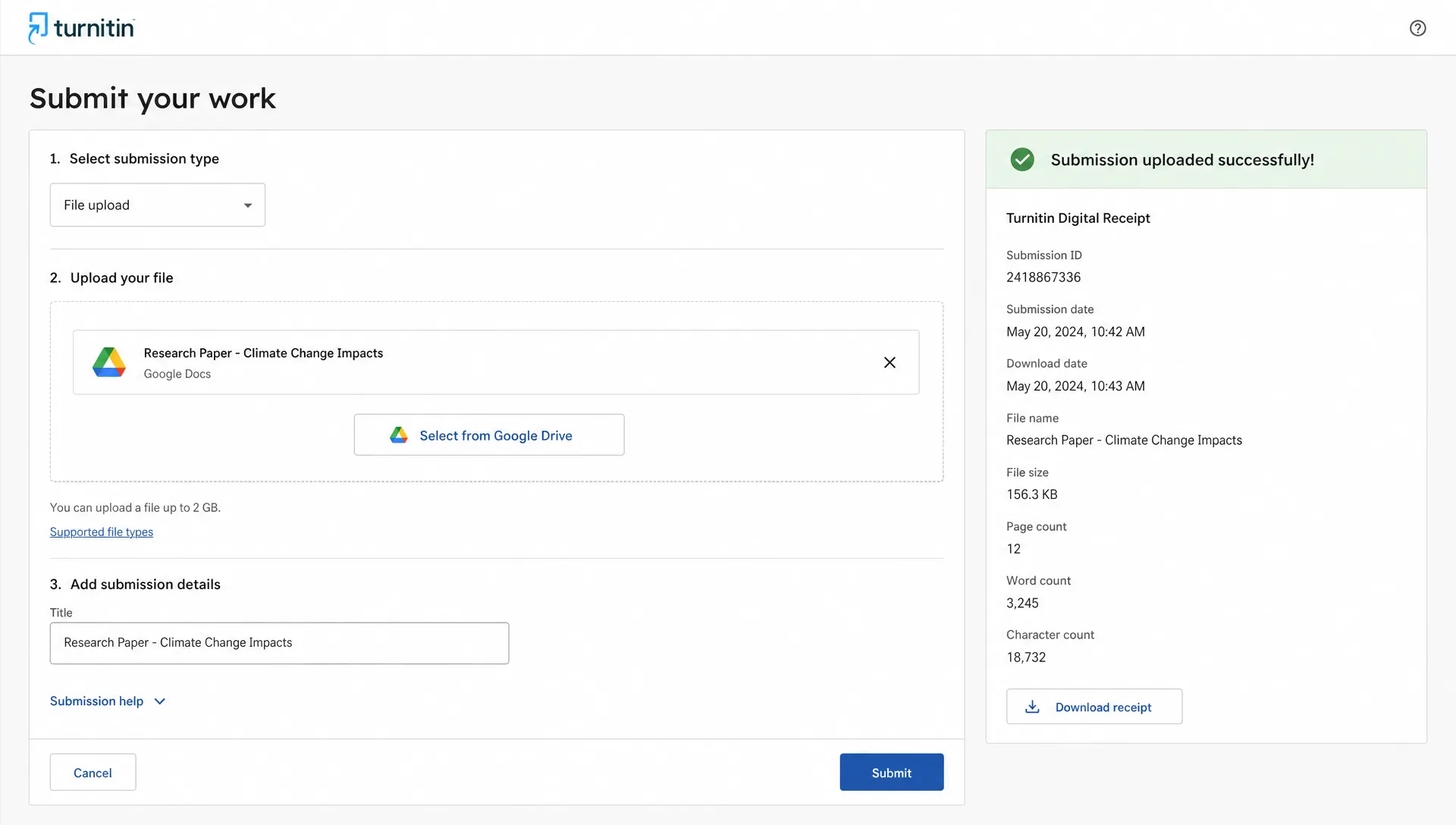
A turnitin google drive submission is possible when the submission page lets you choose Google Drive as a source, select the document and confirm it as the file being turned in. In that setup, Drive is only the storage location. Turnitin is still processing a submitted document, not browsing your Drive folders.
Direct Drive submission is most common when your institution uses a Turnitin workflow that includes cloud upload. If the assignment page only shows a standard file upload button, a text box or an LMS-specific attachment option, then you need to follow that page’s instructions instead.
| Submission route | Can it use a Drive file directly? | What usually happens |
|---|---|---|
| Turnitin website assignment | Sometimes | You choose Google Drive, authorize access, select the file and submit it. |
| Google Classroom assignment | Sometimes | The Classroom workflow may pass the attached document into the originality tool if enabled. |
| Blackboard, Canvas or Moodle with Turnitin | Depends | The LMS may offer a Drive picker, or it may require a downloaded file upload. |
| Shared Google Docs link | Usually no | A link is not the same as a Turnitin submission unless the instructor specifically requested it. |
.gdoc shortcut file from a computer |
No | This is a pointer to a cloud document, not the document content Turnitin needs. |
How turnitin google drive submissions work in practice
Once you select a Drive document from an approved picker, Turnitin receives a copy or exported version of the file for processing. It does not gain general access to your entire Drive account, and it does not automatically check every document you have stored there.
In most schools, turnitin google drive access is controlled by both the school’s Turnitin setup and Google’s account permissions. If your school blocks third-party app access, if you are signed into the wrong Google account or if your browser blocks the authorization pop-up, the Drive picker may fail even though the assignment itself accepts normal uploads.
Google Docs are not the same as Word files
A Google Docs document is a native cloud file. When you submit it through a Turnitin-compatible Drive picker, the system typically has to turn that cloud document into a processable format. If that conversion fails or changes the layout, downloading the document yourself as .docx is often the cleaner backup option.
This matters most for documents with comments, suggestions, tables, equations, footnotes or unusual fonts. Before you submit, switch the document into its final form, accept or reject suggestions and make sure the visible text is the text you actually want graded.
A shared link is not usually enough
Pasting a Google Docs link into a comment box does not normally create a Turnitin report. A link gives the instructor a path to view the file, depending on permissions, but Turnitin still needs the document content inside its submission workflow.
If an instructor asks for a Drive link, follow that instruction. Just do not assume the link itself has been processed by Turnitin unless the assignment page confirms submission and gives you a receipt or status message.
When direct submission is not available
A common turnitin google drive mistake is assuming the Drive picker is universal. It can be missing because of the assignment type, LMS settings, school privacy rules, browser restrictions or the file itself.
The safest workaround is to download the Google Docs file into a supported format, then upload that exported copy. For most essays and research papers, .docx is usually a reliable choice because it preserves editable text, headings, citations and basic formatting. A PDF can also work when it contains real selectable text, but image-only PDFs are more likely to cause processing trouble.
If your upload fails after exporting, the issue may not be Drive at all. File size, unsupported formatting, password protection, corrupted PDFs or scanned pages can all stop Turnitin from processing the paper. For a deeper troubleshooting path, Detection Drama’s guide to Turnitin submission errors explains common failure points and practical fixes.
Google Classroom, Drive and Turnitin are not the same workflow
The turnitin google drive path also looks different inside Google Classroom because Classroom is already built around Drive attachments. You may write in Google Docs, attach the file to a Classroom assignment and press “Turn in” without ever seeing the main Turnitin website.
That does not mean every Classroom attachment is automatically checked by Turnitin. The instructor or institution has to use an originality-checking workflow that connects the assignment to Turnitin or another supported tool. If that connection is active, the report is tied to the assignment settings, not to the mere fact that the file lives in Drive.
This distinction matters because Google Classroom can create a more integrated submission environment than a standalone upload page. If your course uses Classroom, it is worth understanding what Turnitin can see inside Google Classroom rather than assuming it works like a basic file upload.
File types and formatting checks before you submit
Before using turnitin google drive submission, treat the file as if it were being exported and judged as a final document. Open the file one last time, check the first page, scan the citations and confirm that tables, headers and footnotes still look right.
Turnitin requirements can vary by product and school configuration, so your assignment instructions are the final authority. Still, these checks catch many of the problems that make Drive-based submissions fail or look different after processing.
| Pre-submission check | Why it matters | Safer action |
|---|---|---|
| The file contains selectable text | Turnitin needs readable text to generate reports. | Avoid image-only scans unless your instructor requested them. |
| You are signed into the correct Google account | School Drive files may not appear under a personal account. | Use the same account connected to your course. |
| Suggestions and comments are resolved | Draft markup can confuse what counts as final text. | Accept, reject or remove visible suggestions before submission. |
| The exported file opens correctly | Conversion can shift formatting. | Download and reopen the .docx or PDF before uploading. |
| You receive confirmation | Uploading is not the same as submitting. | Save the receipt, timestamp or LMS confirmation screen. |
A small formatting change usually will not decide the outcome of a report, but it can affect readability for your instructor. When in doubt, compare the exported version with the original Google Docs version before the deadline.
Does Google Drive submission affect similarity or AI detection?
Submitting through Drive does not make the text more or less detectable. Turnitin processes the words it receives, along with the assignment’s settings and the institution’s available tools.
A turnitin google drive upload should therefore be treated the same as any other file upload for similarity and AI review. The storage source is not a shield, and writing in Google Docs does not prevent a paper from being flagged. Detection Drama covers that separate issue in detail in its guide on whether Turnitin can flag a paper written in Google Docs.
For similarity, Turnitin compares submitted text against sources available to the system, which may include web pages, publications and student paper repositories depending on the setup. For AI writing, instructors may see an indicator or highlighted passages if the school has access to that feature. In both cases, the submitted content matters more than whether the file came from Drive, a desktop upload or an LMS attachment.
Version history can still be useful if your authorship is questioned. A Google Docs history showing steady drafting, edits and citations can support your explanation, but it is usually not part of a standard Turnitin file upload unless your course uses a workflow that specifically collects process evidence.
Best workflow if your assignment starts in Google Docs
If direct turnitin google drive submission is offered, a careful workflow still helps you avoid preventable errors. The goal is to submit the same final paper your instructor expects to read, with no accidental draft text or broken formatting.
- Finish the paper in Google Docs and resolve comments, suggestions and placeholder text.
- Make sure your name, course details, title, page numbers and citations match the assignment rules.
- If the Turnitin page offers Google Drive upload, select the file from the correct account and wait for confirmation.
- If no Drive option appears, download the file as
.docxor PDF, then reopen it to check formatting. - Upload the correct exported file through the assignment page, not through email or a random share link.
- Save the submission receipt or take a screenshot of the confirmation page before closing the browser.
This process may feel repetitive, but it separates writing from submission. That separation matters because many Turnitin problems happen after the paper is finished, during account authorization, file conversion or final upload.
Troubleshooting a failed Drive upload
When a turnitin google drive upload fails, do not keep pressing submit without checking the cause. Repeated attempts can create confusion, especially in systems that record attempts or lock submissions after the deadline.
Start with the simple checks. Confirm that you are using the right Google account, refresh the assignment page, try a current browser and allow the Google authorization window if it appears. If the Drive picker still fails, download the document as .docx and upload it manually.
If a PDF will not process, open it and try selecting a sentence with your cursor. If you cannot select the text, it may be a scan or image-based export. In that case, return to the original Google Doc and export a fresh copy rather than submitting the unreadable PDF.
If the deadline is close, contact your instructor or help desk with a concise message, a screenshot and the exported file attached if your school allows that. Do not wait until after the deadline to explain that Drive would not connect.
Frequently Asked Questions
Can I paste a Google Drive link into Turnitin? Usually no. A Drive link is not the same as a submitted file unless the assignment specifically asks for links and the instructor handles Turnitin processing separately.
Can Turnitin access my whole Google Drive? No standard submission workflow should be treated as a full Drive scan. Turnitin only needs access to the file you authorize or submit through the approved workflow.
Is .docx better than PDF for Turnitin? For typical essays, .docx is often safer because it preserves editable text. A PDF can work well if it is exported cleanly and contains selectable text.
Does submitting from Google Drive change the similarity score? The source of the upload does not normally change the score. The text, citations, matched sources and assignment settings are what matter.
Can my teacher see Google Docs version history through Turnitin? Usually not from a standard uploaded file. Version history lives in Google Docs unless a specific classroom workflow or institutional tool collects writing-process information.
Final take
Turnitin can accept Google Drive files directly only when the assignment workflow supports it. If the Drive option appears, use it carefully and confirm the submission. If it does not appear, export your Google Doc as a supported file and upload that version instead.
The practical rule is simple: do not rely on storage location, sharing permissions or assumptions. Rely on the assignment page, the confirmation receipt and a final file that opens exactly the way you want it to be read.
