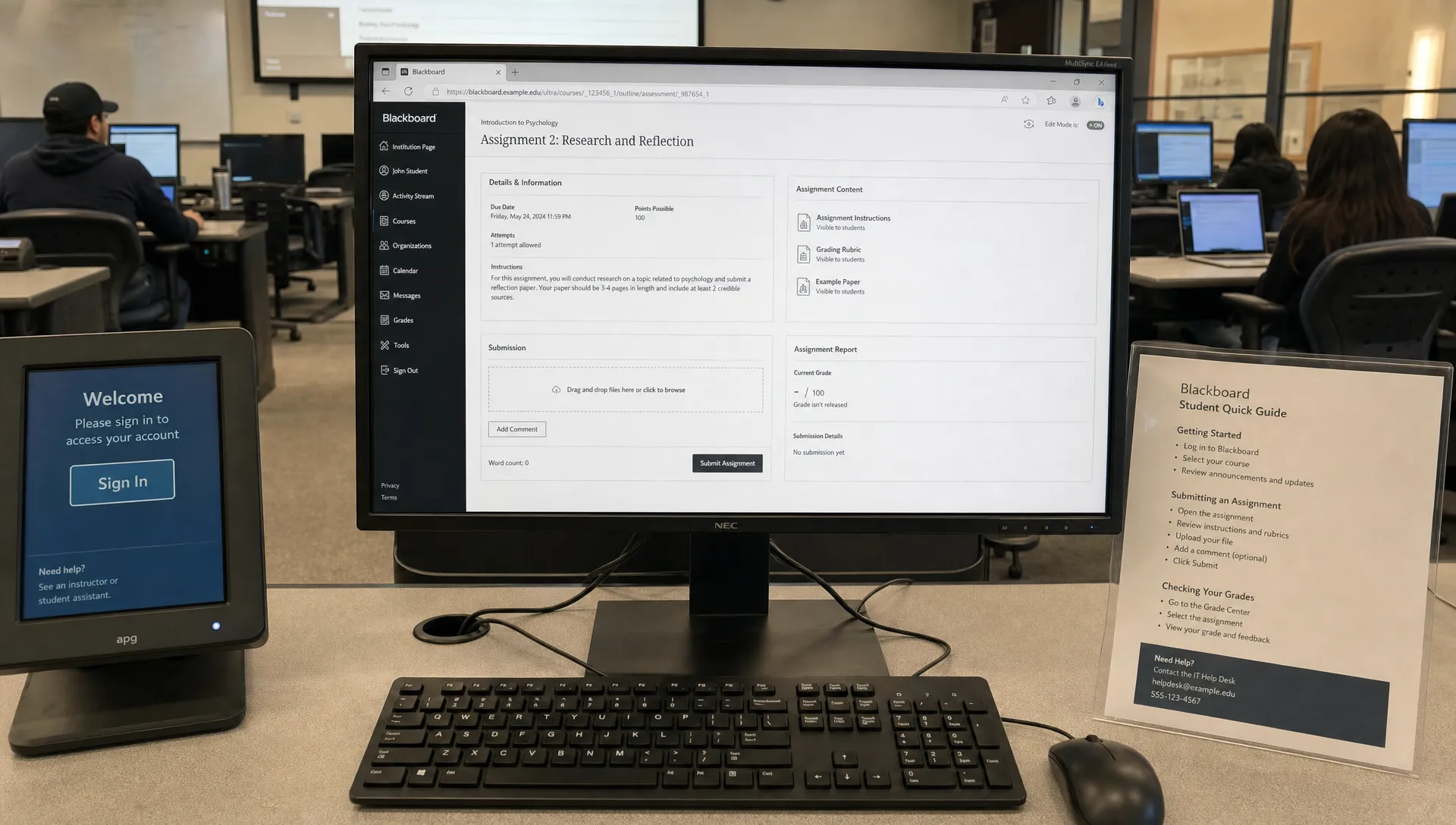
For many students, a turnitin blackboard assignment looks like a normal Blackboard upload box with an extra originality check attached. Behind that simple screen, Blackboard Learn manages the course, due date, student access and gradebook, while Turnitin processes the submitted file and creates reports that may or may not be visible to the student.
That split matters because most confusion comes from not knowing which system controls what. If a report is missing, a score changes after resubmission or an AI indicator appears for a teacher but not for a student, the answer usually depends on institutional settings, instructor choices and the version of Blackboard your school uses.
The only tool that bypassed Pangram and Turnitin in 2026.
Most humanizers clear one detector and get caught by the other. StealthWriter is the one that gets past both — run Ghost 5.2 Pro at level 7–8, section by section, and re-check before you submit.
Try StealthWriter →How turnitin blackboard assignments work in practice
Blackboard is the learning management system, often called an LMS. It is where your course materials, announcements, deadlines, grades and assignment links live. Turnitin is the originality and feedback platform connected to that course space.
When an instructor creates a Turnitin-enabled assignment inside Blackboard, they choose settings such as the due date, whether late submissions are allowed, whether resubmissions are permitted and whether students can view the Similarity Report. Some institutions also enable AI writing detection, but that feature is separate from the similarity check and may not be shown to students.
The key point in any turnitin blackboard workflow is that Blackboard handles course access, while Turnitin analyzes the document and returns report data to the assignment area.
| Part of the system | What it usually does | Why it matters |
|---|---|---|
| Blackboard Learn | Hosts the course, assignment link, grades and deadlines | Controls where students submit work |
| Turnitin assignment | Receives the uploaded file for originality checking | Creates the report instructors review |
| Feedback Studio | Shows similarity matches, comments, rubrics and feedback | Lets instructors review and grade |
| Gradebook connection | Sends grades back to Blackboard when configured | Keeps course grades in one place |
What happens after you submit a paper
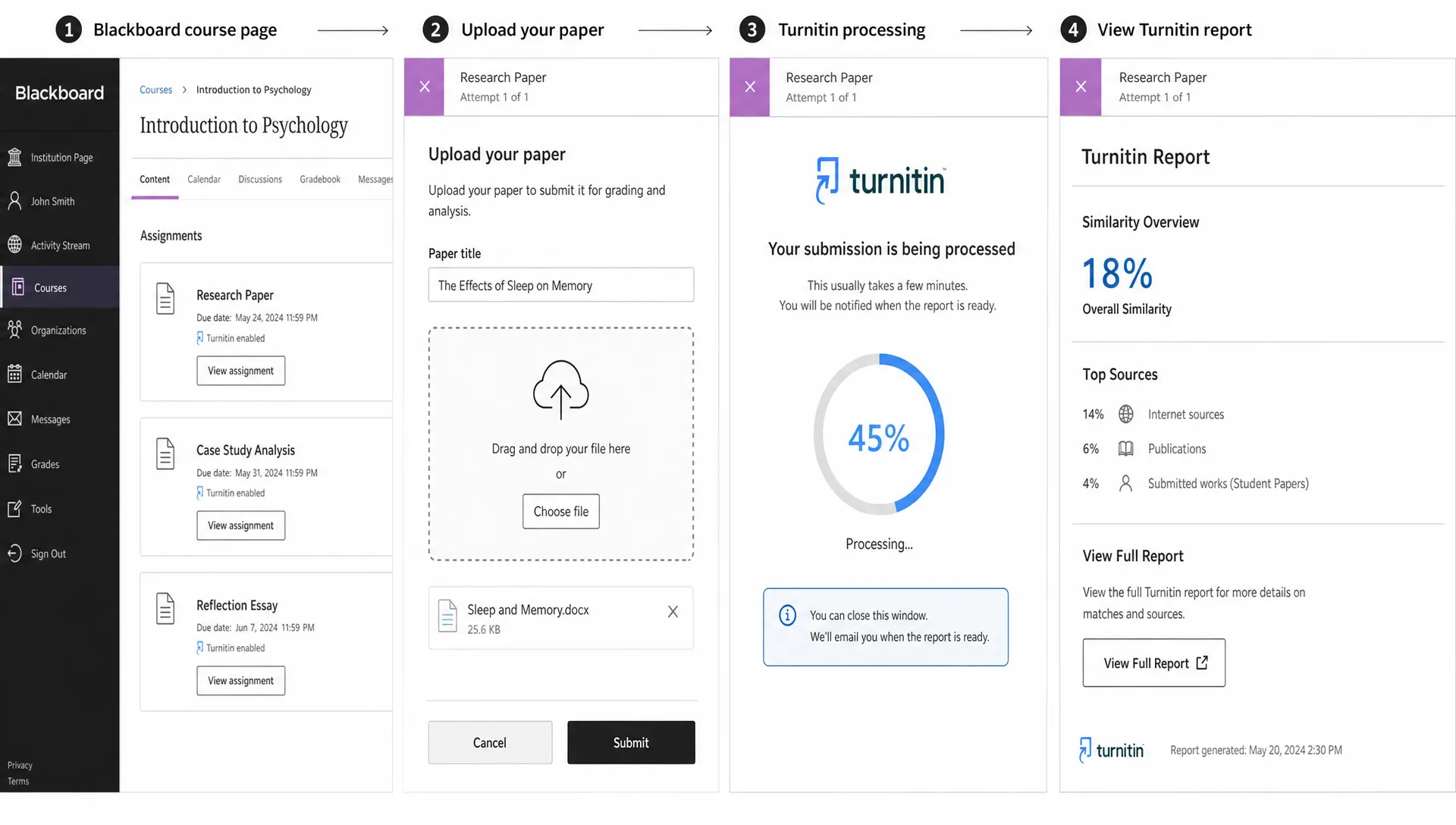
The student experience is usually straightforward. You open the assignment in Blackboard, upload a file or enter text if that option is enabled, confirm the submission and wait for a receipt or confirmation message. The exact screens vary between Blackboard Original and Blackboard Ultra, but the basic process is similar.
Once submitted, the file is passed to Turnitin. Turnitin extracts readable text, compares it against its available sources and produces a Similarity Report when the assignment settings allow it. If you want a broader explanation of the platform itself, this guide to how Turnitin software works explains the difference between the Similarity score and AI Writing score in more detail.
In a turnitin blackboard submission, this processing can feel instant, but reports may take longer during busy periods or after a resubmission.
| Stage | What students may see | What instructors may see |
|---|---|---|
| Upload | File name, submission confirmation and timestamp | Submitted file, student name and submission status |
| Processing | Pending report or no visible report | Processing status inside the assignment inbox |
| Similarity result | Score and sources if student viewing is enabled | Score, highlighted matches and source breakdown |
| Feedback | Grade and comments after release | Inline comments, rubric marks and overall grade |
Understanding Similarity Reports in Blackboard
A Similarity Report is not the same thing as a plagiarism verdict. It shows how much of the submitted text matches content in Turnitin's comparison sources, which can include internet pages, publications and previously submitted student papers. Turnitin's own support guides describe these reports as a tool for reviewing matched text, not as an automatic judgment.
A common misunderstanding with turnitin blackboard reports is assuming a high similarity percentage automatically means plagiarism. A paper with many quoted passages, a long bibliography or standard lab-report wording can generate matches without dishonest writing. A low percentage also does not prove that every source was used correctly.
The instructor has to interpret the report. They can open matched passages, check whether quotation marks and citations are present and decide whether the overlap is acceptable for that assignment. Some teachers exclude bibliographies, small matches or quoted material, which can change the percentage shown.
Why students sometimes cannot open the report
If you cannot see your Similarity Report in Blackboard, it does not necessarily mean the report does not exist. Instructors can choose whether students see reports, when they see them and whether resubmissions create new reports. Some schools hide reports until after the due date so students cannot repeatedly revise only to lower a percentage.
Students also sometimes confuse the report with the grade. A grade can be visible even if the report is hidden, and a report can be visible before feedback has been released. If the assignment link is unavailable after the deadline, that may be a Blackboard availability setting rather than a Turnitin issue.
AI Writing indicators are separate from Similarity Reports
Turnitin's AI Writing indicator is different from the Similarity Report. The similarity check compares text against source material. The AI indicator estimates whether parts of the writing may have been generated by AI. These are separate signals, and one does not replace the other.
In a turnitin blackboard course, the AI Writing indicator is usually part of the instructor side of the report if the institution has enabled it. Many students never see the AI percentage directly, even when teachers or administrators can access it. Detection Drama covers this access gap in its guide to the Turnitin AI scanner, especially for students trying to understand what they can and cannot check on their own.
AI indicators should be treated carefully. A flagged passage is not the same as a final misconduct decision, and schools often require instructors to review the writing, assignment context and student process before taking action. Policies vary widely, so the most reliable source is still your course syllabus or academic integrity office.
Instructor view: grading, feedback and rubrics
For teachers, a turnitin blackboard assignment is useful because it brings submission review, originality checking and feedback into one workflow. Instead of downloading every file manually, the instructor can usually open submissions from the assignment inbox and review them in Turnitin Feedback Studio.
Depending on the setup, instructors may see the submitted file, the Similarity score, matched sources, AI Writing information if enabled, comments, rubrics and grading tools. They may also be able to leave inline notes, use reusable feedback comments and enter a final grade that syncs back to the Blackboard gradebook.
That sync is not magic, though. If a grade does not appear in Blackboard, it may be because the teacher has not posted it yet, the due date has not passed, the assignment column is hidden or the integration needs time to update. Students should avoid assuming a missing Blackboard grade means a missing submission.
What teachers can usually control
Most assignment behavior is controlled before students submit. Teachers can decide whether to allow multiple attempts, whether late work is accepted, when the Similarity Report is generated and whether students can view the report. They may also decide whether submitted papers are stored in a repository for future comparison.
These settings can differ from one class to another at the same school. A first-year writing course might allow draft submissions with visible reports, while a final exam essay might allow only one attempt with hidden reports.
Common report problems and what they mean
Most turnitin blackboard issues are not caused by a broken upload. They come from timing, file readability, assignment settings or confusion between Blackboard and Turnitin screens.
| Problem | Common explanation | What to do |
|---|---|---|
| Report says pending | Turnitin is still processing the file | Wait and refresh later |
| No Similarity score appears | Student report viewing may be disabled | Ask the instructor about settings |
| Score changed after resubmission | A new report was generated or sources updated | Review the latest report if visible |
| File will not upload | File type, size or browser issue may be involved | Try an accepted file format and stable browser |
| Grade missing in Blackboard | Feedback may not be posted or synced yet | Check submission receipt and course announcements |
If you receive an error, save a screenshot and keep your submission receipt. That gives your instructor or support desk something concrete to review. Waiting until the deadline has passed makes technical problems harder to resolve.
Practical tips before you upload
Before using any turnitin blackboard upload box, check the assignment instructions rather than relying on habits from another course. Instructors use different settings, and small differences can affect whether you get a report, whether you can resubmit and whether late work is accepted.
A few simple habits reduce most submission stress:
- Use the file format requested by your instructor, commonly a Word document or PDF when allowed.
- Submit before the deadline so you have time to fix upload or browser problems.
- Keep your digital receipt, confirmation email or screenshot of the submitted file.
- Check whether the assignment allows drafts or only a final submission.
- Ask your instructor how AI and similarity reports are handled in that specific course.
These steps do not change how Turnitin evaluates the paper, but they help you avoid preventable disputes about whether the work was submitted correctly.
Frequently Asked Questions
Is Blackboard the same as Turnitin? No. Blackboard is the course platform, while Turnitin is the originality and feedback tool that can be integrated into a Blackboard assignment.
Can students see their Turnitin report in Blackboard? Sometimes. A turnitin blackboard report is visible to students only if the instructor or institution has enabled student access, and the release timing can vary.
Does Turnitin inside Blackboard check for AI writing? It can if the school has Turnitin's AI Writing feature enabled, but the AI indicator is separate from the Similarity Report and may be visible only to instructors.
Can I resubmit a paper after uploading it? Only if the assignment settings allow multiple attempts or resubmissions. Some instructors allow draft attempts, while others permit only one final upload.
Can I check my own work on Turnitin before submitting? Usually not through a public free Turnitin account. Access is normally controlled by schools, instructors and course settings. Detection Drama explains the limits in this guide to checking your own work on Turnitin.
Get clearer about reports before you panic
Turnitin inside Blackboard is easier to understand once you separate the course platform from the reporting tool. Blackboard controls where the assignment lives and how grades appear, while Turnitin creates the similarity review, feedback view and AI indicator when enabled.
If you are trying to understand what your instructor can see, why your report is hidden or how AI detection fits into the process, explore more plain-English Turnitin guides at Detection Drama.
