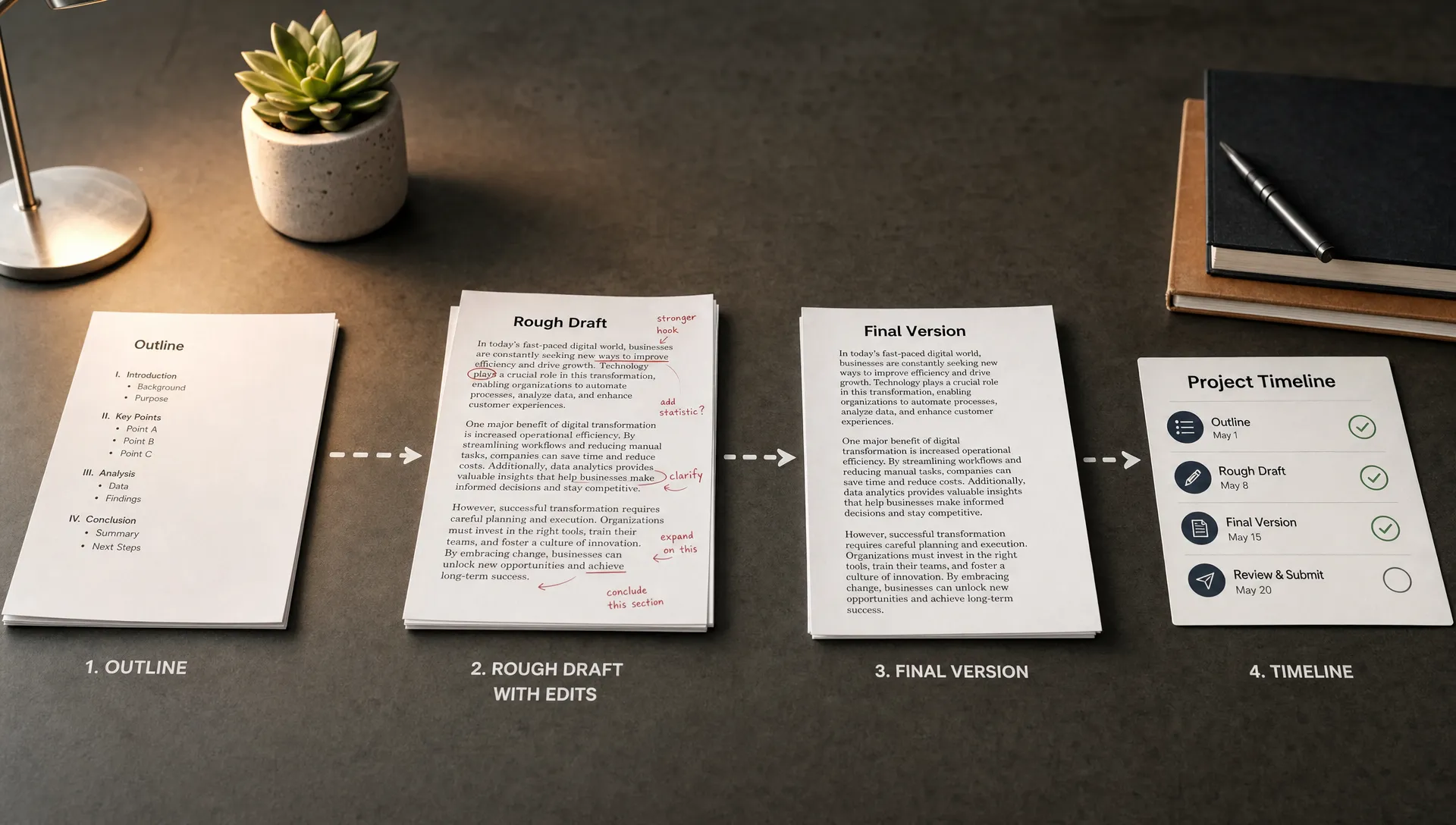
If a teacher, editor or review board questions whether you wrote a document yourself, Track Changes can give you something much stronger than a denial. It can show how the draft moved from outline to rough wording to final argument, including the sentences you deleted, the comments you left for yourself and the revisions you made along the way.
That matters because AI detection results are usually treated as a signal, not a full explanation of authorship. A flagged paragraph from an AI content detector may start the conversation, but your writing process evidence is what helps explain what actually happened.
Track Changes is not magic forensic proof. It does not prove what was happening in your head and it cannot repair a missing draft history after the fact. Used correctly, though, it can become one of the clearest pieces of evidence in an authorship packet.
Want to bypass Turnitin in 2026? Grab the free prompt pack.
Get the exact text-humanization prompts I use to drop an AI score by hand — copy, paste, submit. Free, straight to your inbox.
Send me the free prompts →What Track Changes can and cannot prove
Track Changes records edits made inside a Microsoft Word document when the feature is turned on. Depending on your settings and file handling, those edits can include insertions, deletions, formatting changes, comments, author names and time information. In an AI writing dispute, this creates a visible trail of development.
The most useful thing about Track Changes is that it shows process. A finished essay can look suspiciously polished, especially if it uses a neutral academic voice. A marked-up draft shows starts, stops, substitutions and corrections. Those human traces make it easier to explain how the final version came together.
| Track Changes evidence | What it can support | What it cannot prove by itself |
|---|---|---|
| Inserted and deleted sentences | The draft developed through revision | That every idea originated without outside help |
| Comments in the margin | Your reasoning, questions and source checks | That comments were written at the same time as the first draft unless supported by file history |
| Formatting and citation edits | Cleanup, source integration and final preparation | That the sources were used correctly |
| Author names and timestamps | Who edited the file and in what sequence, when metadata is preserved | Absolute identity, since devices and accounts can be shared |
| Accepted or rejected changes | A cleaned version was produced from a marked-up draft | The full process if no evidence copy was saved before accepting changes |
The strongest evidence usually combines Track Changes with other records: version history, research notes, outlines, source annotations, feedback emails and the final submission receipt. If you are trying to understand how much weight a file history carries, Detection Drama’s guide on whether Google Docs or Word version history is enough as proof gives helpful context.
Set up Track Changes before you draft
Track Changes works best when it is turned on early. If you only enable it after the essay is mostly finished, it may still capture final edits, but it will not show the messy development that makes the evidence persuasive.
In most current versions of Microsoft Word, you can turn it on from the Review tab by selecting Track Changes. Microsoft’s own guide to Track Changes in Word explains the basic controls, including how to show markup and review edits.
Before you start writing, check three practical settings. First, make sure the document shows All Markup, not only a clean preview. Second, confirm that your Word account or author name is recognizable. If every edit appears under “User” or a shared lab computer name, the evidence becomes less clear. Third, save the file in a location that preserves file history if possible, such as OneDrive, your institution’s approved cloud storage or a folder that you back up regularly.
You do not need to write every sentence in one perfect session. In fact, normal drafting often helps the evidence. A paper with a thesis that changes, paragraphs that move around and comments like “add source here” or “too vague, revise after lecture notes” looks like real academic work because it reflects how writing usually happens.
Draft in a way that creates useful evidence
The goal is not to perform revision for an audience. It is to let your real process remain visible. If you are writing from scratch, turn on Track Changes at the start and work normally. If you are revising an existing draft, save a copy of the original draft before you begin, then revise with Track Changes on.
Use comments for the kinds of thinking that are otherwise invisible. A good comment does not need to be long. Short notes such as “find page number,” “compare with Smith article,” “this paragraph repeats intro” or “professor said to narrow the claim” help connect the final wording to your decisions.
Be careful with large pasted blocks. Pasting is not automatically suspicious. Students paste quotations, notes, paragraphs moved from another file and text copied from a prior draft. The problem is that a large paste with no surrounding context may be hard to explain later, especially in a Turnitin or AI detection dispute. If you move text from another file, keep that source file. If you paste a quotation, cite it immediately or leave a comment explaining where it came from.
If your institution allows AI writing tools for limited uses, such as brainstorming or grammar suggestions, document that use separately. Save the prompt, output and your revised wording. If your policy does not allow AI assistance, Track Changes will not make prohibited use acceptable. It can only show what happened in the document.
What to save while you write
A Track Changes file is most persuasive when it is part of a simple evidence folder. You do not need to bury an instructor in dozens of files. You want a small set of records that makes the timeline easy to follow.
Save these items as you work:
- The assignment prompt or rubric
- Your outline, thesis notes or planning document
- Research notes, annotated PDFs or source excerpts
- The working Word document with Track Changes enabled
- A dated backup copy at major milestones, such as outline, rough draft and final draft
- The clean file you actually submitted
- Feedback emails, tutor notes or peer review comments if they shaped the draft
This is the same logic behind building a broader authorship file. If you want a more complete structure, use Detection Drama’s guide on how to build an authorship packet before you submit and include your Track Changes file as one key part of that packet.
How to export Track Changes as evidence
If your writing is questioned, do not immediately start editing the same file. Preserve what exists first. A common mistake is to open the document in a panic, accept changes, rewrite paragraphs and accidentally weaken the evidence.
Follow a calm export process:
- Save an untouched copy: Duplicate the original Word file and label it clearly, such as “Essay working file with tracked changes, preserved Sept 2.”
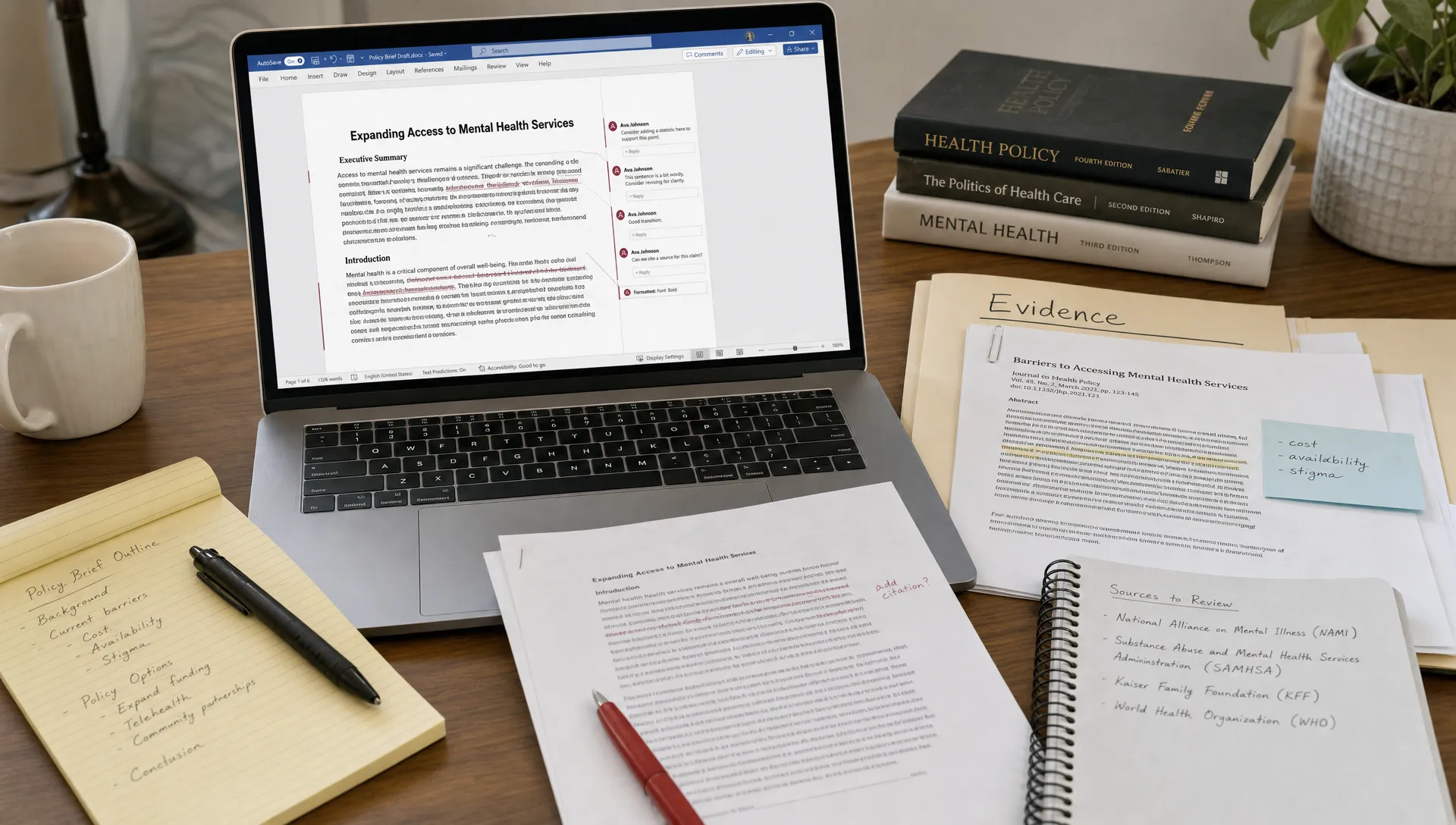
- Create a review copy: Open the duplicate, not the untouched original, and set the display to All Markup so insertions, deletions and comments are visible.
- Open the Reviewing Pane if useful: The Reviewing Pane can summarize changes and make dense edits easier to inspect.
- Export a PDF with markup visible: Use Word’s print or export options to create a PDF that shows the tracked changes and comments as they appear on screen.
- Keep the native .docx file: A PDF is easy to read, but the Word file may preserve richer metadata and editable markup.
- Write a short timeline note: Add a separate note explaining when you began, when major revisions happened, what feedback you used and which file was submitted.
Do not run a document inspector or metadata cleaner on the evidence copy. Those tools can remove author and revision information that may help you. If you need to submit a clean copy for privacy reasons, preserve the original evidence file first and send only what the instructor or review process asks for.
Track Changes vs version history vs process trackers
Track Changes is useful because it makes revisions visible inside the document. Version history is different. It shows saved states over time, which can help establish when the document changed. Dedicated writing process trackers may record even more granular behavior, such as typing rhythm, paste events or drafting sessions, depending on the tool.
You do not need every possible tool to defend your writing process. You need enough consistent evidence to show a plausible timeline.
| Evidence source | Best use | Main weakness |
|---|---|---|
| Track Changes | Showing sentence-level edits, comments and revisions | Weak if turned on late or accepted before saving |
| Word or Google Docs version history | Showing saved drafts across time | May not show detailed reasoning behind edits |
| Writing process trackers | Showing more granular drafting activity | May require setup before writing begins |
| Research notes | Connecting claims to sources | Can be messy unless dated or organized |
| Feedback records | Showing why revisions happened | Only covers parts discussed with others |
In practice, Track Changes answers “how did the text change?” Version history answers “when did the file change?” Notes and feedback answer “why did it change?” Put together, those records are much more persuasive than an AI detector percentage alone.
How to present Track Changes to an instructor
When you share Track Changes evidence, keep the tone factual. You are not trying to attack the detector, accuse the instructor of bad faith or overwhelm anyone with technical arguments. You are trying to make review easier.
Start with a short message that identifies the files and explains what each one shows. Attach the clean submitted version, the marked-up review copy, the native Word file if appropriate and a short timeline. If there are sensitive comments in the margins, ask whether the instructor wants the full working file or a redacted copy, but do not alter the preserved original.
A simple message can look like this:
Hi Professor, I understand there is a concern about the authorship of my essay. I saved my working draft with Track Changes enabled, along with my outline, source notes and the final submitted version. The marked-up copy shows my revisions and comments during the writing process. I am happy to walk through the timeline or provide the native Word file if that would help your review.
This kind of message works because it stays focused on evidence. It does not claim that Track Changes proves everything. It shows that you are prepared to explain your process.
If you have already been accused and you are trying to avoid making things worse, follow a preservation-first approach. Detection Drama’s 24-hour response plan for AI use accusations explains what to save before you send long explanations or make new edits.
Mistakes that weaken Track Changes evidence
Track Changes evidence is easy to damage by accident. Most problems come from cleaning up the file too early or trying to rebuild evidence after a concern has already been raised.
Avoid these mistakes:
- Turning on Track Changes only after the final draft is nearly done
- Accepting all changes before saving a marked-up evidence copy
- Editing the disputed file after an accusation without first preserving it
- Sending screenshots only, with no native Word file or PDF export
- Using a shared account or generic author name without explanation
- Pasting large blocks from another file and deleting the source file
- Claiming Track Changes proves “no AI” instead of saying it supports your writing timeline
The last point matters. A careful reviewer may distrust exaggerated claims. It is better to say, “This file shows my drafting and revision process” than “This proves no tool was ever involved.” Track Changes is strongest when you present it honestly.
If you used AI tools, document the boundary
Some courses ban AI writing tools completely. Others allow limited help for brainstorming, grammar, translation, outlining or feedback. Because policies vary, the safest approach is to document exactly what happened and compare it against the rules you were given.
If AI assistance was allowed, keep a separate AI-use log with the tool name, date, prompt, output and what you changed afterward. Your Track Changes file can then show how you transformed notes or suggestions into your own final wording. If AI assistance was not allowed, do not create a fake revision trail or rely on a text humanizer as a substitute for honest process evidence. A humanized paragraph may look different to an AI content detector, but it does not explain authorship.
For academic disputes, process evidence is not about making writing look human after the fact. It is about preserving the real work while it happens.
Frequently Asked Questions
Is Track Changes enough to prove I wrote my essay? Track Changes can be strong supporting evidence, but it is rarely the only proof you should rely on. Combine it with version history, notes, outlines, sources and feedback records.
Should I submit my essay with Track Changes visible? Usually no, unless your instructor asks for a marked-up draft. Save the Track Changes version for your records, then submit a clean final copy that follows the assignment instructions.
What if I forgot to turn on Track Changes? Preserve what you still have. Save version history, outlines, notes, browser research history if appropriate, source annotations and earlier drafts. Do not try to recreate fake edits.
Do comments in Track Changes help? Yes, especially when they explain your reasoning, source choices or revisions. Comments are stronger when they align with version history, notes and the final paper.
Can Track Changes help if Turnitin flags my paper? It can help you respond by showing how the document developed. It will not automatically override a Turnitin result, but it gives an instructor evidence beyond an AI detection score.
Build your writing evidence before there is a problem
Track Changes is most useful when it is part of your normal drafting routine, not a last-minute defense. Turn it on early, save milestone copies and keep your research trail organized. If a plagiarism checker, AI content detector or instructor ever questions your work, you will have a clear record instead of a stressful scramble.
For more practical guidance on AI detection disputes, authorship evidence and reviewing how your writing may be perceived, explore the resources at Detection Drama.
